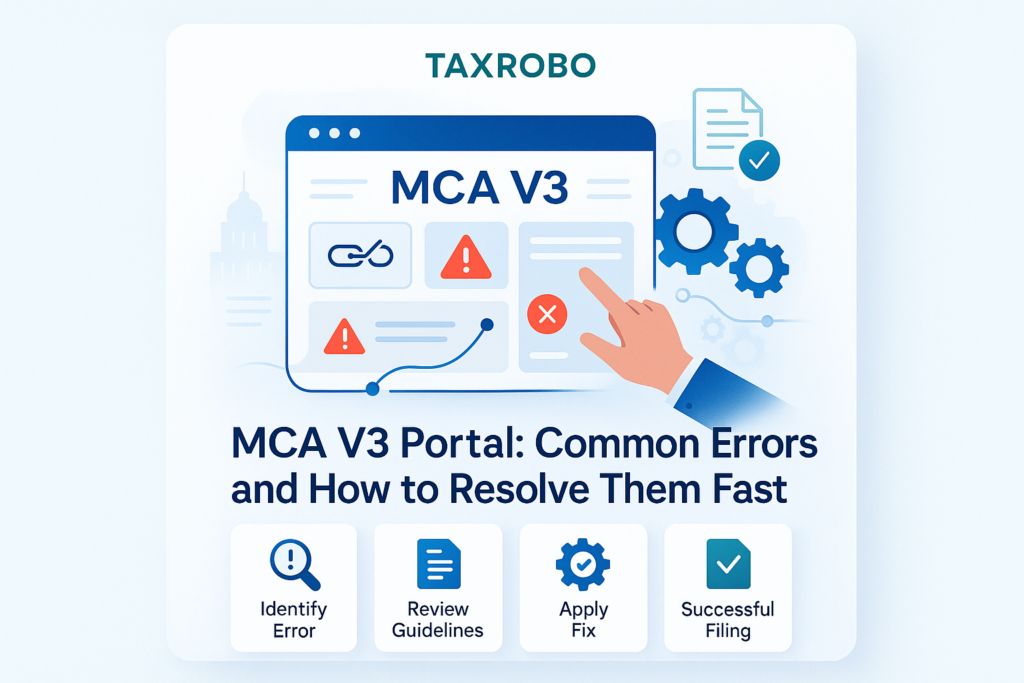

MCA V3 Portal: Common Errors and How to Resolve Them Fast
The transition to the Ministry of Corporate Affairs (MCA) V3 Portal was a significant step towards modernizing company compliance in India. However, for many company directors, professionals, and business owners, this shift has been accompanied by a series of technical hurdles. If you’ve felt the frustration of a failed form submission or a cryptic error message just before a deadline, you’re not alone. While the portal aims for greater efficiency, users frequently encounter a host of MCA V3 Portal common errors that can delay critical filings and cause unnecessary stress. Understanding how to navigate these issues is crucial, as timely compliance is non-negotiable for avoiding steep penalties and maintaining a good legal standing. The V3 portal is central to managing your ROC Compliance for Private Limited Company. This guide will walk you through the most common problems and show you how to resolve MCA V3 errors fast, turning frustration into successful filings.
First, A Quick Look at the MCA V3 Portal
Before diving into troubleshooting, it’s helpful to understand the context of this new platform. The MCA V3 Portal is the upgraded digital gateway for all company-related regulatory filings in India. It represents a significant technological leap from its predecessor, the V2 portal, and is designed to create a more intuitive and data-driven compliance environment for businesses.
What is the V3 Portal and Why Was It Introduced?
The V3 Portal is the new official website of the Ministry of Corporate Affairs, built on a modern technology stack. It was introduced to streamline various processes, from company incorporation to annual return filings and everything in between. For new businesses, the first step is understanding How to Register a Company in India: Complete Process & Checklist. The key intended benefits of this upgrade include:
- Improved User Interface (UI): A cleaner, more user-friendly design to make navigation simpler.
- Enhanced Data Analytics: Better backend processing for faster validation and more insightful data management.
- Streamlined Processes: A more logical flow for form filings and data submission, intended to reduce manual errors.
- Single Sign-On: The ability to access multiple MCA services with a single login ID.
Despite these goals, the transition has presented a learning curve, leading to a specific set of recurring technical issues that users must learn to overcome.
Top 5 MCA V3 Portal Common Errors and Their Solutions
Based on user feedback and our experience at TaxRobo, most issues fall into a few key categories. By understanding the root cause of these MCA V3 Portal common errors, you can apply the right fix without wasting valuable time. Here’s a breakdown of the top five problems and their solutions.
1. DSC (Digital Signature Certificate) Validation and Association Errors
One of the most frequent roadblocks users face is related to the Digital Signature Certificate (DSC), which is mandatory for authenticating documents on the portal.
The Problem: You encounter error messages like “DSC validation failed,” “DSC is not registered with the system,” or a prompt stating, “Please associate your DSC.” These errors typically appear at the final stage of form submission, right when you are about to sign the document.
Common Causes:
- You are using an old or incompatible version of the emSigner utility, the software required to bridge your DSC token and the web browser.
- Your browser settings are blocking essential pop-ups that the emSigner utility needs to function correctly.
- Your DSC is not properly linked or “associated” with your specific User ID (based on PAN/DIN) on the V3 portal. A DSC associated on the V2 portal does not automatically carry over.
The Solution (MCA V3 errors solutions):
- Update emSigner: The first step is to uninstall any old version of emSigner from your computer. Then, visit the MCA Portal and download the very latest version of the utility. Install it with administrative rights and ensure it is running in the background before you attempt to sign any document.
- Check Browser Settings: For the best compatibility, use the latest version of Google Chrome or Microsoft Edge. Before logging in, clear your browser’s cache and cookies. Most importantly, go into your browser’s site settings and explicitly allow pop-ups and redirects for
mca.gov.in. - Associate Your DSC: Log into your MCA V3 Portal account. Navigate to the ‘Profile Update’ section, which can usually be found by clicking on your name at the top right corner. Here, you will find an option for ‘DSC Association’. Follow the on-screen instructions to register your DSC. You will need to select the DSC from your token and validate it with the token’s password. Ensure the DSC you are associating belongs to the individual whose account you are logged into.
2. Login and User Registration Issues
Many users stumble at the very first step: logging in or creating an account. The confusion between V2 and V3 credentials is a primary source of these errors.
The Problem: You see messages like “Invalid Credentials” even when you are sure the password is correct, or you encounter errors during the ‘Business User’ registration process. There is also widespread confusion about the difference between a ‘Registered User’ and a ‘Business User’.
Common Causes:
- The most common mistake is trying to use old V2 portal login credentials on the V3 portal. The systems are separate.
- A slight mismatch between the PAN, name, or date of birth you enter and the details recorded on your official PAN card.
- Selecting the wrong user role for your needs, which can lock you out of necessary functions like form filing.
The Solution (MCA V3 Portal troubleshooting tips India):
- Create a New V3 ID: It is mandatory for every single user, regardless of their status on the V2 portal, to create a brand-new user ID on the V3 portal. Your old credentials will not work.
- Verify Details Meticulously: During registration, ensure every character in your name, your PAN number, and your date of birth is an exact match to what is printed on your PAN card. Even an extra space or a difference in initials (e.g., “K Kumar” vs. “K. Kumar”) will lead to a validation error.
- Understand User Roles:
- Registered User: This is a basic account for the general public. It allows you to use services like viewing public documents or tracking SRN status. You cannot file any company forms with this role.
- Business User: This is the category for directors, designated partners, professionals (like CAs, CS, CMAs), and managers who need to file e-forms on behalf of a company or LLP. These filings include tasks like the Annual Return Filing for Private Limited Companies. If you need to submit any compliance documents, you must register as a ‘Business User’.
3. E-Form Uploading and ‘SRN Not Generated’ Failures
You have filled out the entire form, attached all the necessary documents, and are ready to submit, but the portal refuses to cooperate.
The Problem: The e-form gets stuck on the upload screen with a spinning loader that never resolves. Alternatively, you might see a generic error message like “Something went wrong, please try again later,” or worse, the form appears to submit, but no Service Request Number (SRN) is generated, leaving you with no proof of submission.
Common Causes:
- An unstable, slow, or intermittent internet connection that disrupts the upload process.
- PDF attachments that exceed the file size limit. The MCA portal typically restricts each attachment to 6 MB.
- Browser incompatibility issues or a session timeout, where the system logs you out in the background due to inactivity.
The Solution (how to fix MCA V3 errors quickly):
- Use a Stable Connection: Always use a reliable, high-speed internet connection for MCA filings. To avoid high server traffic, try filing during non-peak hours, such as early in the morning or late at night.
- Optimize Attachments: Before you even begin filling out the form, ensure all your PDF attachments are compressed. You can use free online tools or the “Reduce File Size” feature in Adobe Acrobat. Rename your files clearly (e.g., “Board_Resolution_DDMMYYYY.pdf”) and verify that each one is well under the 6 MB limit.
- Save Drafts & Refresh: The V3 portal has a ‘Save Draft’ feature. Use it frequently to avoid losing your work. If the upload page becomes unresponsive, do not keep waiting endlessly. Log out, clear your browser cache completely, close the browser, reopen it, and then log back in. You can then resume your filing from the ‘My Application’ tab where your saved draft will be available.
4. Payment Gateway Errors
A particularly stressful error occurs when your money has been debited, but the MCA portal doesn’t acknowledge the payment.
The Problem: You complete the payment process, and the amount is successfully debited from your bank account. However, when you check the SRN status on the MCA portal, it still shows ‘Pending for Payment’. The transaction may have also failed abruptly while being redirected from the bank’s website.
Common Causes:
- A temporary communication glitch between the payment gateway, your bank’s server, and the MCA portal.
- Accidentally closing the browser window or clicking the ‘Back’ button after the payment is processed but before you are automatically redirected back to the MCA website.
The Solution:
- Wait and Watch (The Golden Rule): The most important thing to do is NOT attempt to pay again for the same SRN immediately. This will likely result in a double payment. In most cases, the payment status gets reconciled and updated automatically by the system within 24 to 48 hours.
- Check Payment History: After waiting, log in to the MCA portal and navigate to the ‘My Application’ tab. Find the relevant SRN and check its status. Often, it will have updated to ‘Payment Confirmed’ or a similar status.
- Raise a Ticket: If the status has not updated even after 48 hours, it’s time to take action. Go to the MCA helpdesk section and raise a complaint ticket. Be sure to provide all relevant details: the SRN, the exact amount, the transaction ID from your bank statement, and the date and time of the payment.
5. ‘Technical Error’ or Vague System Messages
Sometimes, the portal gives you a generic error that provides no useful information about what went wrong.
The Problem: You receive a vague pop-up that says “A technical error has occurred,” “An unknown error has occurred,” or something similar, without any specific error code or explanation.
Common Causes:
- These are often due to temporary backend server issues or ongoing maintenance on the MCA’s side.
- There might be a deep-seated incompatibility between the portal and your specific system configuration (e.g., firewall settings, browser extensions).
The Solution (resolving MCA errors in India):
- The “Log Out, Clear Cache, Log In” Method: This classic IT troubleshooting step resolves a surprising number of temporary glitches. Log out of the portal, clear your browser’s entire cache and history, restart the browser, and then log back in.
- Check for MCA Announcements: Before raising a ticket, visit the homepage of the MCA Portal. Check the “News & Important Updates” section for any notifications about scheduled maintenance, system downtime, or known system-wide issues.
- Document and Report: If the problem persists, take a clear screenshot of the entire browser window, ensuring the error message, the URL in the address bar, and the date/time on your computer are visible. Raise a detailed support ticket with the MCA helpdesk and attach this screenshot as evidence. A well-documented ticket is more likely to get a quick and effective response.
Proactive Tips to Avoid Common Issues with MCA V3 Portal
Prevention is always better than cure. By adopting good practices, you can minimize the chances of encountering these frustrating errors in the first place.
Always Use Recommended Software
Ensure your system is always up-to-date. This includes using the latest versions of Google Chrome or Microsoft Edge, your preferred PDF reader (like Adobe Acrobat Reader), and, most importantly, the emSigner utility downloaded directly from the MCA website.
Prepare All Documents in Advance
Before you start filling any form on the portal, get organized. Gather all the required information (like Director Identification Numbers, addresses, and resolution dates) and prepare all necessary attachments. Scan the documents, name them logically, and compress them to meet the size requirements. Knowing the full list of Documents Required for Incorporation of a Company can streamline this preparation phase. This will make the filing process smooth and quick, reducing the risk of a session timeout.
Read the Instruction Kit
Every single e-form on the MCA portal comes with a detailed instruction kit. This PDF document is your best friend. It explains every field in the form, lists the required attachments, and clarifies common points of confusion. Taking 15 minutes to read this kit can save you hours of troubleshooting later.
Conclusion
Navigating the MCA V3 Portal can certainly be a challenge, especially when you are up against a compliance deadline. However, most of the prevalent MCA V3 Portal common errors—from DSC validation and login troubles to form upload and payment gateway failures—can be resolved with a systematic and patient approach. By understanding their common causes and applying the proven solutions outlined in this guide, you can significantly improve your chances of a successful filing. The key is to be prepared, use the right software, and follow a logical troubleshooting process.
Navigating the complexities of compliance can be time-consuming. If you’re tired of resolving MCA errors in India and want to ensure your company’s filings are handled accurately and on time, TaxRobo is here to help. Our experts manage the entire process, so you can focus on your business. Contact Us Today for Hassle-Free MCA Filings!
Frequently Asked Questions (FAQs)
Q1: Why is my registered DSC not working on the MCA V3 Portal?
A: This is often due to an outdated emSigner, browser pop-up blockers, or trying to use a DSC that isn’t correctly associated with your V3 user profile. Follow the steps in our guide to update your software, allow pop-ups for the MCA site, and re-verify the DSC association under your profile settings on the V3 portal.
Q2: Do I have to create a new User ID for the V3 portal if I was already registered on the V2 portal?
A: Yes, absolutely. The user databases for the V2 and V3 portals are completely separate. All users, whether they were on the old portal or are brand new, must complete a fresh registration on the MCA V3 Portal to access its services.
Q3: My payment was deducted, but the MCA form status is still ‘Pending’. What should I do?
A: Do not pay again. This is a common issue related to payment reconciliation. Wait for at least 24-48 hours, as the system often auto-updates the status. If it doesn’t change after this period, raise a service ticket with the MCA helpdesk, providing your SRN and payment transaction details for them to investigate.
Q4: How can I compress my PDF attachments for MCA upload?
A: You can use several methods. Many free and reliable online PDF compressor websites are available. Alternatively, if you have software like Adobe Acrobat Pro, you can use the built-in ‘Optimize PDF’ or ‘Reduce File Size’ feature. Always open the compressed document afterward to ensure it is still clear, complete, and readable before attaching it to your form.